
Launched ColdFusion + Mura CMS Powered Site for Mitchell Swaback Charities

Every once in awhile, I'm fortunate enough to be involved in projects that truly "make a difference." This, for me, is one of those projects.

Mitchell Swaback Charities, formerly known as The Mitchell Swaback Foundation, launched their new web site at www.mitchellswabackcharities.org. Mitchell Swaback Charities was started in 2004 by family and friends of Mitchell Swaback after he suffered from a fatal accident on August 14, 2004. They wanted to continue Mitch's "compassion to serve in missions, the church and to honor God in the way Mitch did on a daily basis." For over five years now, they have been busy fulfilling their mission through a variety of projects and events that continue to impact people throughout the world.

The site is powered by Adobe® ColdFusion® and Microsoft® SQL Server with online content management provided via Mura CMS. I was able to fully integrate Jaci M.'s completely custom "bloggishy" design into Mura CMS without a hitch. I leveraged a number of class extensions and custom display objects in Mura CMS to pull everything together.

I was even able to pull in my cfMediaPlayer project from RIAForge to allow the client to upload and display video quickly and easily. Luckily, Amazon added streaming capabilities to CloudFront just in time for me to allow our client to stream their video as well.

Along with a typical "donate online" feature, the client had a few unique needs such as the ability to "flag" nearly any project as "supportable" which would then allow a visitor to direct their donation amount(s) towards that particular project. Other custom e-commerce applications included a "charity event participant sponsorship" application and a complete "golf outing sponsorship and registration" application.

I truly felt privileged to be a part of this project and hope that my work further enables MSC to continue thriving and growing in their mission to "Advance the Kingdom of Christ by Reaching Out to Others." Congratulations and thank you to everyone at Mitchell Swaback Charities.
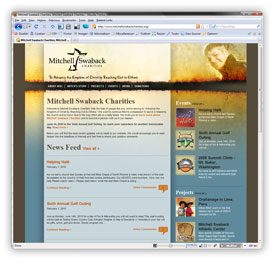
Mitchell Swaback Charities
Designer: Jaci M. | Developer: Stephen Withington | Content Management System: Mura CMS

Adding Custom CSS Style Options to the Mura CMS Content Editor Toolbar

If you would like to add your custom CSS styles to the Mura CMS content editor toolbar, also known as a the FCKeditor toolbar, then read on!

First, let's make sure we're all on the same page. If you have access to the "Admin" area of a Mura CMS site, you can login, go to the Site Manager and select a page to edit content on. In the 'Content' area, a toolbar containing buttons to format the text, insert pictures, etc. runs across the top. This is the toolbar to which I'm referring. Here you will find a 'Style' dropdown.

This dropdown is controlled by an .XML file located under /{siteid}/includes/themes/{themename, i.e., 'merced'}/css/fckstyles.xml. Here is the basic content of that file:


<?xml version="1.0" encoding="utf-8" ?>
<Styles>
    <Style name="Align Image Left" element="img">
        <Attribute name="class" value="left" />
    </Style>
    <Style name="Align Image Right" element="img">
        <Attribute name="class" value="right" />
    </Style>
    <Style name="Intro" element="p">
        <Attribute name="class" value="intro" />
    </Style>
    <Style name="Centered Text" element="p">
        <Attribute name="class" value="center" />
    </Style>
    <Style name="Call to Action" element="a">
        <Attribute name="class" value="callToAction" />
    </Style>
    <Style name="Call to Action" element="li">
        <Attribute name="class" value="callToAction" />
    </Style>
</Styles>

In order to get your custom styles to appear in the dropdown, we would then obviously need to edit this particular file. To test this out, let's add some <Style> elements to this file.


    <Style name="Paragraph" element="p" />
    <Style name="Heading 1" element="h1" />
    <Style name="Heading 2" element="h2" />
    <Style name="Heading 3" element="h3" />
    <Style name="Heading 4" element="h4" />
    <Style name="Heading 5" element="h5" />
    <Style name="Heading 6" element="h6" />
    <Style name="Italic" element="em" />
    <Style name="Blockquote" element="blockquote" />
    <Style name="Preformatted Text" element="pre" />

Be sure you place these just after the opening <Styles> tag! Save the file, upload it to your site and navigate to your Admin > Site Manager, then select a page to edit.

Hey! Where's My Styles?

The first thing you'll probably notice is that nothing has changed. If this is the case, trust me, your changes are there, you just can't see them yet. Unfortunately, a <CTRL> + <F5> won't be enough to remedy this situation either, and this is probably where some people have thrown up their hands in frustration. Don't worry, we'll get this fixed in a snap.

The problem is merely that the contents of the XML file have been cached. So, let's 'officially' clear the cache, shall we? In Firefox, at the top of the Firefox window, click on the Tools menu, and select Options. Select the Advanced panel, then click on the Network tab. In the Offline Storage section, click the Clear Now button. Then click the OK button to close the Options window. If you're using Internet Explorer, then use Firefox. Just kidding ... but seriously, use Firefox.

If you're like me and have taken advantage of the 'Web Developer' toolbar add-on for Firefox, it's even simpler. Just click the Miscellaneous button on the toolbar, hover over Clear Private Data, then click Cache. That's it!

Show Me More!

So now you should see your 'new' styles appearing in the style dropdown. However, you want more don't you? Of course you do. Luckily, there is some pretty good documentation on the CKEditor site at http://docs.cksource.com/FCKeditor_2.x/Developers_Guide/Configuration/Styles. There you should be able to learn more about the XML file, Style nodes, Attribute nodes, "Object" elements, and more.

I hope this helps!

Integrating Your Custom Web Site Design with Mura CMS

Are you tired of trying to shoe-horn your custom web site design into someone else's content management system? Drop in and learn how to fully integrate your custom CSS and HTML with Mura CMS, a comprehensive, ColdFusion-powered, open source content management system. In less than sixty minutes, I'll attempt to cover:

  • Exploring Mura templates & themes
  • Integrating your custom CSS & HTML
  • Creating Mura components
  • Creating Feeds/Indexes
  • Creating Custom Feeds/Indexes

If you haven't already done so, it might behoove you to catch part one, "Getting Started with Mura CMS", offered on the CFmeetup on Nov 12, with the recording here.

Where: The presentation will be online and free to anyone who's interested. The meeting will also be recorded for those who are unable to make it to the live presentation. Visit http://www.meetup.com/coldfusionmeetup/calendar/11981239/ for more information and to RSVP.

When: Thurs. Dec 3, 12:00pm US ET (UTC/GMT-5)

Feel free to stop by!

More Entries

© 2026, Stephen J. Withington, Jr.  |  Hosted by Hostek.com

Creative Commons License   |   This work is licensed under a Creative Commons Attribution 3.0 Unported License.